Simply download the instructions below to create your own beach tote bag quickly and easily.
By Month
Author: JMA
DIY casual bag
Simply download the instructions below to create your own casual bag quickly and easily.
DIY vibrant placemat
Give your table that individual touch with vibrant placemats. They’re easy to make and we’ll show you how.
Simply download the instructions below to create your own vibrant placemats quickly and easily.
DIY colourful cushions
Give your home a make over with some colourful cushions, they’re easy to make and we’ll show you how.
Simply download the instructions below to create your own colourful cushions quickly and easily.
DIY curtains
Show off your creative skills and tailor make curtains for that special room in your house, it’s easy and we’ll show you how.
Why not change your curtains with the season it’s a fun way to give your room an instant makeover.
Simply download the instructions below to create your own stunning curtains quickly and easily.
Piping Foot – accessory of the month November 2017
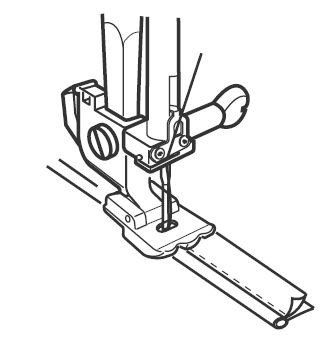
The Janome Piping Foot has 2 grooves which allows for 5mm cord to be fed through with ease whilst sewing. What exactly is Piping? Piping (or cording) are the outlines of home decor. They provide a coordinating or contrasting edge along the seams of slip covers, cushions, pillows and more. You simply sew the piping (or cording) into your seam and it gives a professionally finished look. There are many ways you can use cord in your projects – just take a look at the ‘Piping Cord Embellished Table Runner’ project available when you click on the link on the Accessory of the Month…
Janome Embroidery Bauble Decoration

Whip up a little handmade Christmas magic with our Embroidery Bauble Decoration! Check out this fun little diy sewing project:

Requirements
• 2 x embroidery threads
• 2 x empty bobbins
• Organza fabric (will vary depending on how many you make)
• Wash away stabiliser (will vary depending on how many you make)
• Small scissors
• Ribbon to tie decorations once complete
• USB with downloaded designs – you may wish to combine multiple designs into one hooping.
Construction
1. Hoop wash away stabiliser with organza on top.
2. Wind a bobbin of each of the two threads.
3. Place the thread that you wish to use for the centre of the design in the machine. Also put matching bobbin in machine.
4. Attach the hoop.
5. Embroider the motif area of the circle.
6. Change the thread to the 2nd colour in the bobbin and on the machine. This will stitch the satin stitch around the bauble.

7. The embroidery bauble should now be completed. Remove from the hoop.
8. Cut around the organza and stabiliser using small sharp scissors. Be careful not to cut the stitching.
9. Rinse the bauble in water so it becomes sheer with only thread and fabric.

10. Dry and press.
11. Attach ribbon through the top of the bauble and start decorating your tree!


To access the embroidery designs please click here.
To save this project’s instructions as a PDF file please click here.
Working with Dropbox & AcuDesign App for the iPad
The update to Dropbox on the 10th of October, 2017 may have changed the way that you can now access your designs that you have stored in folders within the Dropbox app. Previously you could select the import / export icon to select for Dropbox from within the AcuDesign app. After the update, you can still use Dropbox, just in a different way.
The following directions will help to work with designs that you have saved into Dropbox but wish to use in AcuDesign.
1. Open Dropbox app on the iPad.

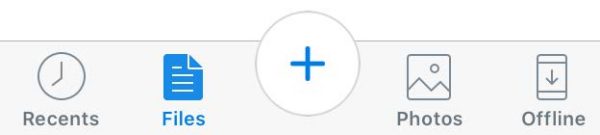
2. Select the Files icon at the bottom left of the screen.
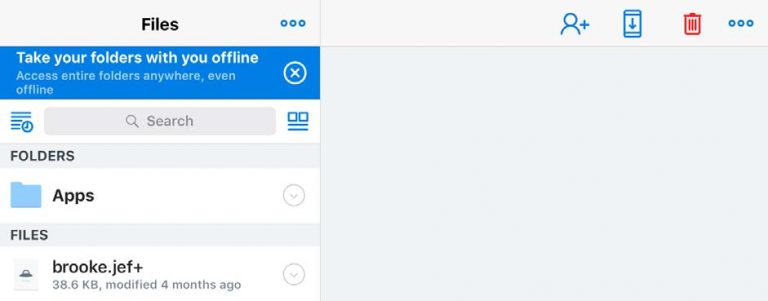
3. Select the folder named ‘Apps’ that is listed under the folders heading on the left.
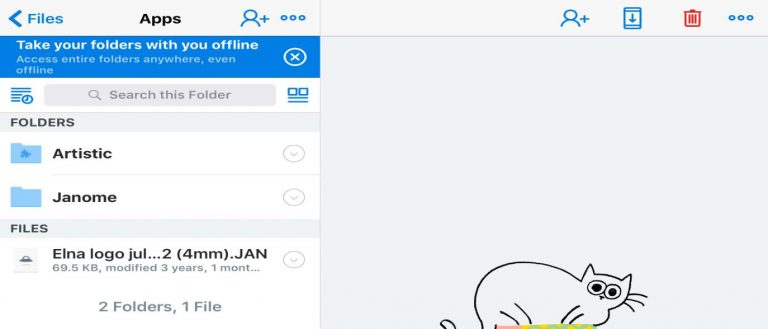
4. A new list will open and one will be named ‘Artistic’, select this folder and you will have your .jef files showing.
5. Select a file by pressing on its name. It will become highlighted blue.
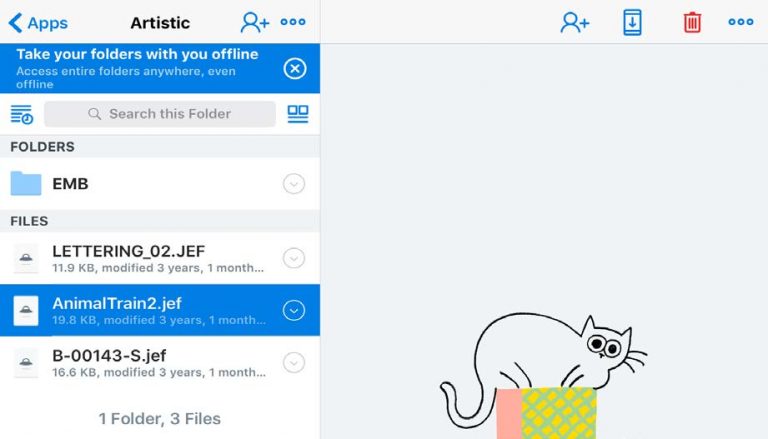
6. Now select the icon in the top right of the screen. A drop down will show and select ‘Export’.
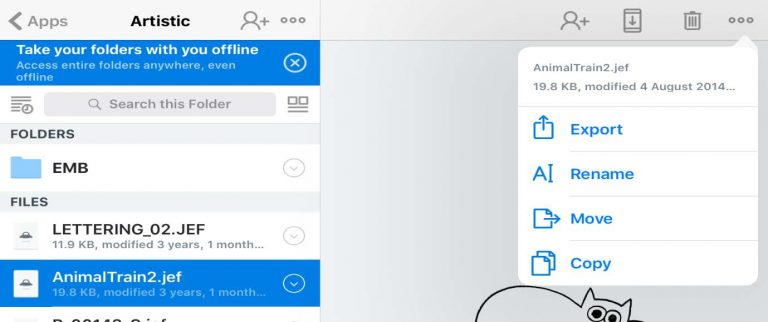
7. Select Open In… (The menu will change)
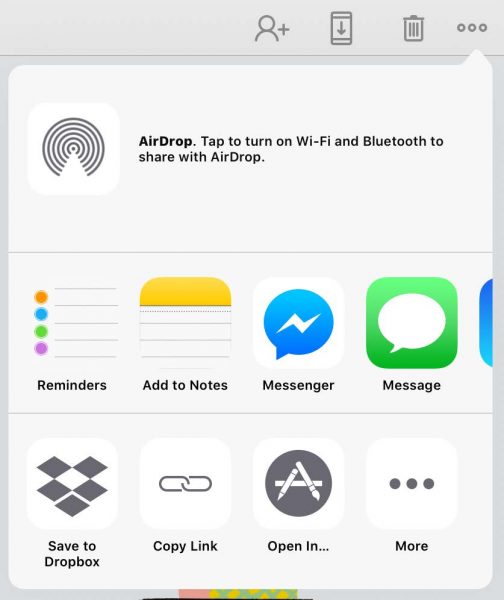
8. Scroll across until you see the icon for AcuDesign. Select the icon ‘Import with AcuDesign’.
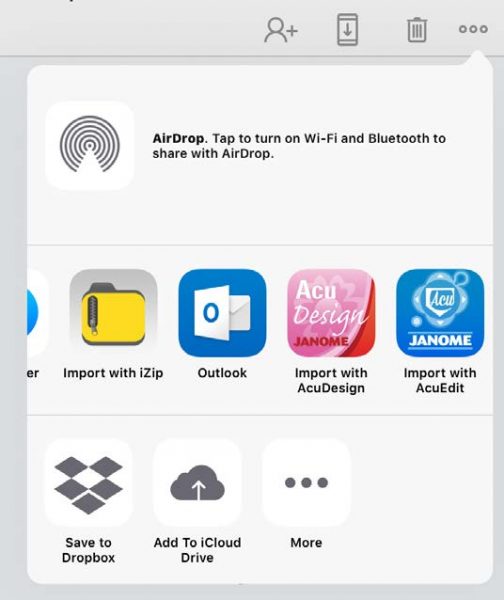
9. The iPad will then open AcuDesign app. It will prompt you to save the design to use in the app.
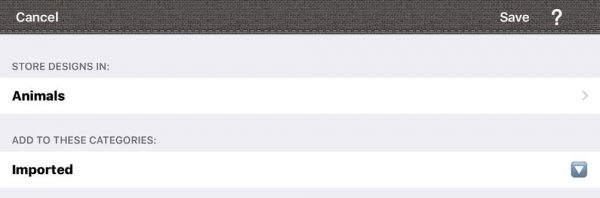
10. You can create your own folder at this point by selecting the ‘Edit’ icon.
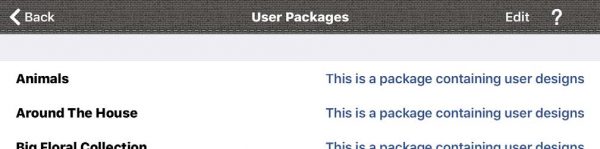
11. Select the ‘Add New’ icon from the list.

12. Name the folder and description to suit you.
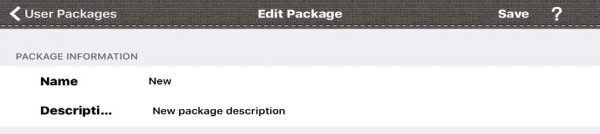
13. Save the file names.
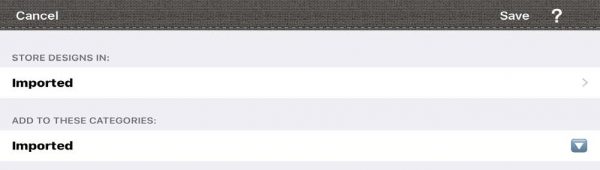
14. Save the design to the folder and you will be able to use it through the AcuDesign App.
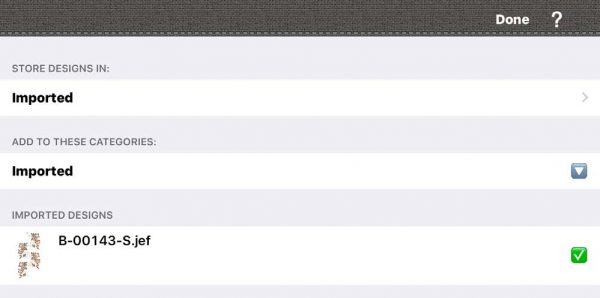
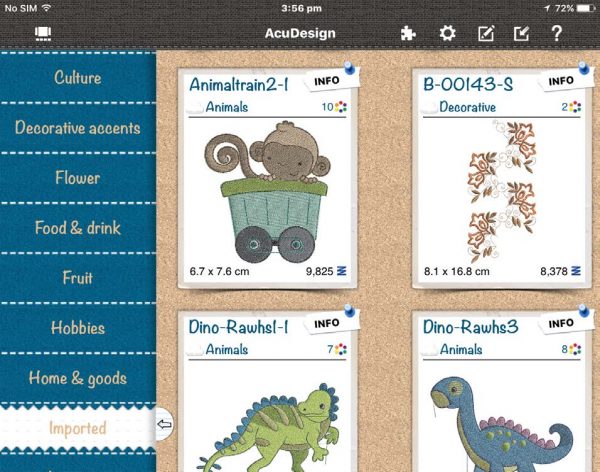
15. You will now be able to see the design that you saved in the ‘Imported’ folder in the AcuDesign app.
To download the instructions as a PDF document, click here.
Free Motion Darning Foot – Accessory of the Month October 2017
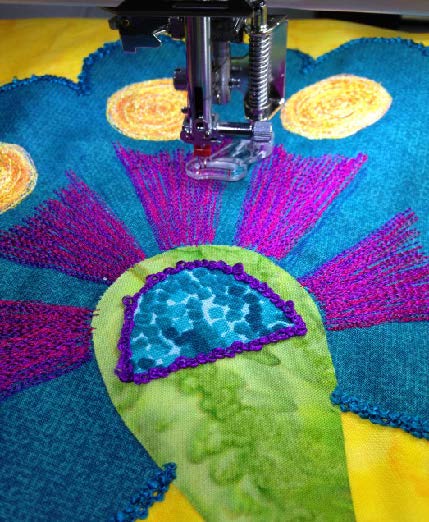
It’s great fun to do free-hand embroidery with a sewing machine! The stitching is controlled by the movement of your hands while manually guiding the fabric. This foot is especially designed for free motion embroidery, stippling, darning and monogramming. Skipped stitches are no longer a concern; as the needle moves up and down, so does the spring-loaded foot. This foot gives excellent fabric control while the stitches are being formed as well as the ability to move the project freely under the foot. Furthermore, the transparent foot makes it easy to see the stitching as you darn and quilt.
This Accessory of the Month comes with a bonus project – click on the link in the PDF and the easy step-by-step instructions are right there for you to follow.
Tips & Techniques
[su_spacer]
[su_row][su_column size=”1/2″ center=”no” class=””]

[/su_column]
[su_column size=”1/2″ center=”no” class=””]
Heading
Lorem ipsum dolor sit amet, consectetur adipiscing elit. Nulla dolor sapien, sagittis ut consequat sit amet, sollicitudin quis libero. Sed fermentum dui pretium posuere imperdiet. Duis ac placerat urna, ut ornare metus. Ut mi sem, facilisis vitae quam ac, auctor congue lacus. Sed non ex nec lorem posuere volutpat. Sed justo mi, lobortis tincidunt ullamcorper ut, tincidunt quis purus. Vivamus aliquet tincidunt neque. Donec molestie pharetra diam, a dictum nisi pretium eget. In ac iaculis ex, ut pretium metus. Morbi vel ultrices nibh, ac laoreet enim. Nulla tincidunt sodales sollicitudin. Orci varius natoque penatibus et magnis dis parturient montes, nascetur ridiculus mus. Integer porta non est vitae dapibus. Duis mauris metus, mattis non justo nec, gravida pharetra mi.
Etiam blandit sem non tortor aliquet, non luctus nibh pretium. Suspendisse efficitur lacus molestie velit egestas efficitur. Praesent euismod dapibus enim, vitae pretium turpis fermentum et. Mauris dignissim purus ut justo ornare tempor nec id nulla. Curabitur pretium pretium lacus aliquet auctor. Nullam at urna tortor. Integer eleifend ultricies aliquam. Etiam sed ex et elit eleifend ullamcorper. Nunc a auctor sapien. Pellentesque habitant morbi tristique senectus et netus et malesuada fames ac turpis egestas. Nunc at cursus arcu, non laoreet est. Interdum et malesuada fames ac ante ipsum primis in faucibus. Aliquam egestas ut lacus eu sollicitudin. Nam consectetur eu neque ac aliquet. Sed luctus, nisi at pretium gravida, nisi nibh eleifend dolor, quis laoreet metus lectus quis lectus. Morbi euismod diam in molestie convallis.
[/su_column][/su_row]